 +91 8076673524
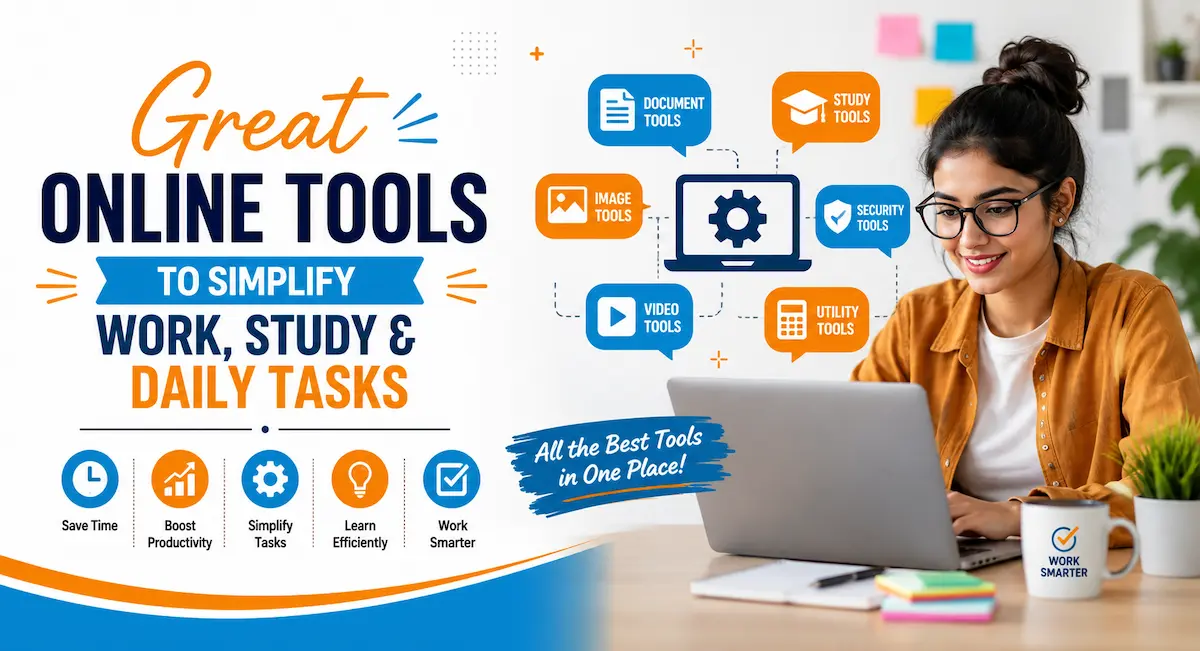
The right digital tools can turn chaos into calm. In 2026, professionals, students, freelancers, and business owners face endless tasks—writing, designing, researching, collaborating, and managing files. The wrong tools waste hours. The right ones multiply output.
Great online tools no longer just “help.” They automate repetitive work, sharpen quality, and free mental space for high-value thinking. This guide highlights practical, high-impact options across categories. Each recommendation includes clear ratings, best-use cases, websites, pricing notes, and key features so you can decide quickly.
Focus stays on usefulness, strong free tiers where available, and real-world results. You will find tools that fit different budgets and skill levels.
Why Great Online Tools Matter More Than Ever
Digital work expanded rapidly. Hybrid teams, remote clients, and AI-assisted workflows became standard. Without the right stack, people drown in tabs, emails, and version conflicts.
Strong tools create leverage. A solid writing assistant catches errors before clients do. An AI research tool surfaces verified sources in seconds. A design platform lets non-designers produce professional visuals. Cloud storage keeps everyone on the same page without email attachments.
Experience shows that people who deliberately select and master a focused set of tools outperform those who jump between dozens of shiny apps. Depth beats breadth.
AI Assistants That Actually Help
AI moved from novelty to daily utility. The best options now handle context, cite sources, and integrate into existing workflows.
ChatGPT
Rating: 4.7/5
Best For: Versatile drafting, brainstorming, coding help, and multimodal tasks
Website: chat.openai.com
iOS App (App Store): https://apps.apple.com/us/app/chatgpt/id6448311069
Android App (Play Store): https://play.google.com/store/apps/details?id=com.openai.chatgpt
Free or Paid: Free with paid upgrades (Plus and higher)
ChatGPT remains a versatile workhorse. It drafts emails, outlines articles, debugs code, brainstorms ideas, and analyzes data. Multimodal features accept text, images, and voice. Custom GPTs let users build specialized helpers for recurring tasks.
Key Features:
- Multimodal input (text, images, voice, files)
- Custom GPTs for specialized workflows
- Memory across conversations (paid)
- Code interpreter and advanced reasoning
- High usage limits on paid plans
Claude
Rating: 4.6/5
Best For: Long-document analysis, nuanced professional writing, and careful reasoning
Website: claude.ai
iOS App (App Store): https://apps.apple.com/us/app/claude-by-anthropic/id6473753684
Android App (Play Store): https://play.google.com/store/apps/details?id=com.anthropic.claude
Free or Paid: Free with paid upgrades (Pro)
Claude excels at long documents and careful writing. Large context windows let it review entire reports or codebases in one go. Many users prefer its measured, professional tone for client-facing content.
Key Features:
- Very large context window
- Strong performance on writing and analysis
- Artifacts for generating and previewing content
- Careful, measured output style
- Available via API
Perplexity
Rating: 4.5/5
Best For: Real-time research with cited sources
Website: https://www.perplexity.ai/
iOS App (App Store): https://apps.apple.com/us/app/perplexity-ai-search-chat/id1668000334
Android App (Play Store): https://play.google.com/store/apps/details?id=ai.perplexity.app.android&hl=en_IN
Free or Paid: Free with paid Pro upgrades
Perplexity acts as a research engine with citations. Every answer links sources, reducing hallucination risk for factual work. Real-time web access keeps information current.
Key Features:
- Live web search with source citations
- Follow-up questions in the same thread
- Focus modes (academic, social, etc.)
- Multiple model options on Pro
- Clean, trustworthy research interface
NotebookLM
Rating: 4.6/5
Best For: Synthesizing your own documents and source material
Website: https://notebooklm.google/
iOS App (App Store): https://apps.apple.com/us/app/gemini-notebook/id6737527615
Android App (Play Store): https://play.google.com/store/apps/details?id=com.google.android.apps.labs.language.tailwind&hl=en_IN
Free or Paid: Free
NotebookLM builds a private AI assistant grounded only in the documents, PDFs, or links you upload. It avoids general-knowledge hallucinations and generates useful audio overviews.
Key Features:
- Grounded answers from your uploaded sources
- Audio Overview (podcast-style summaries)
- Supports PDFs, Docs, URLs, and videos
- Inline citations for verification
- Completely free for personal use
Writing and Content Creation Tools
Clear writing still drives results. These tools improve readability, grammar, and speed without replacing human judgment.
Grammarly
Rating: 4.7/5
Best For: Grammar, tone, clarity, and professional polishing
Website: https://www.grammarly.com/
iOS App (App Store): https://apps.apple.com/us/app/grammarly-ai-keyboard-notes/id1158877342
Android App (Play Store): https://play.google.com/store/apps/details?id=com.grammarly.android.keyboard&hl=en_IN
Free or Paid: Freemium
Grammarly goes far beyond spell-check. It flags tone issues, suggests clarity rewrites, and adapts to formal or conversational styles. Browser and app integrations catch problems inside Gmail, Google Docs, and LinkedIn.
Key Features:
- Real-time grammar and spelling corrections
- Tone detection and adjustment
- Clarity and conciseness rewrites
- Plagiarism detection (Premium)
- Cross-platform integrations
Hemingway App
Rating: 4.4/5
Best For: Improving readability and cutting fluff
Website: https://hemingwayapp.com/
iOS App (App Store): https://apps.apple.com/in/app/hemingway-eng/id1060500723
Android App (Play Store): https://play.google.com/store/apps/details?id=com.appfactory.concise&hl=en
Free or Paid: Free with premium features
Hemingway highlights complex sentences, passive voice, and adverbs. The readability score pushes writers toward clarity. It works best as a final polish after drafting.
Key Features:
- Readability scoring
- Complex sentence highlighting
- Passive voice detection
- Adverb usage alerts
- Grade-level analysis
QuillBot
Rating: 4.4/5 Best For: Paraphrasing, rewriting, and summarization Website: https://quillbot.com Free or Paid: Free with premium options
QuillBot rephrases text while preserving meaning. Multiple modes adjust formality or length. Summarizer and grammar tools add value for research and editing.
Key Features:
- Multiple paraphrasing modes
- Text summarization
- Grammar checking
- Synonym suggestions
- Plagiarism prevention support
Design and Visual Tools for Non-Designers
Visual content performs better across platforms. Modern tools remove technical barriers.
Canva
Rating: 4.7/5 Best For: Fast graphic design, social content, and presentations Website: https://www.canva.com Free or Paid: Freemium
Canva’s drag-and-drop editor plus AI features (Magic Studio) let anyone create social posts, presentations, and simple videos. Brand kits keep colors and fonts consistent.
Key Features:
- Extensive template library
- AI-powered Magic Studio tools
- Brand kits for consistency
- Easy collaboration
- Strong free tier with Pro upgrades
Photopea
Rating: 4.5/5 Best For: Advanced image editing without software installation Website: https://www.photopea.com Free or Paid: Free (with optional premium)
Photopea delivers Photoshop-like editing directly in the browser. Layers, masks, and advanced tools handle complex image work without an Adobe subscription.
Key Features:
- Full layer support
- Advanced selection and masking tools
- Compatible with PSD files
- No installation required
- Completely free for most uses
Productivity and Organization Platforms
Scattered notes and tasks kill momentum. Centralized systems restore control.
Notion
Rating: 4.6/5 Best For: All-in-one notes, databases, wikis, and project management Website: https://www.notion.com Free or Paid: Free with paid plans and AI add-on
Notion combines notes, databases, wikis, and project boards. AI features summarize pages, generate action items, and answer questions across your workspace.
Key Features:
- Flexible databases and views
- Built-in AI for drafting and summarizing
- Templates and wikis
- Team collaboration
- Generous free plan for individuals
Trello
Rating: 4.4/5 Best For: Visual Kanban-style task and project tracking Website: https://trello.com Free or Paid: Free with paid upgrades
Visual boards make progress obvious. Cards move through stages, with due dates, checklists, and power-ups for automation.
Key Features:
- Simple drag-and-drop boards
- Checklists, due dates, and labels
- Power-Ups and automation
- Easy team sharing
- Solid free plan
File Sharing and Cloud Storage Essentials
Reliable access and sharing prevent bottlenecks.
Google Drive
Rating: 4.6/5 Best For: Integrated cloud storage and real-time collaboration Website: https://drive.google.com Free or Paid: Free (15 GB) with paid storage upgrades
Fifteen GB free storage plus seamless Docs, Sheets, and Slides integration makes Drive the default for many. Shared drives and AI-powered search improve team access.
Key Features:
- Real-time multi-user editing
- Tight Google ecosystem integration
- Version history
- Powerful search
- Easy sharing controls
Dropbox
Rating: 4.5/5 Best For: Reliable file sync and secure sharing Website: https://www.dropbox.com Free or Paid: Freemium
Excellent sync reliability and selective sync options. Strong for creative files and client sharing with password protection and expiration links.
Key Features:
- Automatic file synchronization
- Smart Sync to save local space
- Advanced sharing controls
- Team folders and admin tools
- Strong third-party integrations
WeTransfer
Rating: 4.3/5 Best For: Simple large-file transfers Website: https://wetransfer.com Free or Paid: Free with premium features
When you need to send large files without accounts or friction, WeTransfer still wins for simplicity. Free transfers cover most everyday needs.
Key Features:
- Drag-and-drop interface
- No registration required for basic use
- Automatic email notifications
- Large file support
- Clean, minimal design
SEO, Research, and Marketing Tools
Visibility requires data. These tools deliver actionable insights without enterprise budgets.
Ubersuggest
Rating: 4.3/5 Best For: Keyword research and content ideas Website: https://neilpatel.com/ubersuggest Free or Paid: Freemium
Keyword ideas, content suggestions, and basic competitor data help plan what to create. Free tiers provide enough for small sites and personal blogs.
Key Features:
- Keyword suggestions and volume data
- Content ideas
- Site audit basics
- Competitor insights
- User-friendly interface
Collaboration and Communication Tools
Hybrid work demands clear channels.
Slack
Rating: 4.5/5 Best For: Team messaging and organized communication Website: https://slack.com Free or Paid: Free with paid upgrades
Channel-based messaging, file sharing, and integrations keep conversations organized. Huddles handle quick voice or video syncs.
Key Features:
- Organized channels and threads
- File sharing and search
- App integrations
- Huddles for quick calls
- Solid free plan for small teams
Loom
Rating: 4.5/5 Best For: Async video messages and screen recordings Website: https://www.loom.com Free or Paid: Free with paid plans
Async video messages replace many meetings. Record screen + camera explanations that recipients watch on their schedule.
Key Features:
- Easy screen and camera recording
- Instant shareable links
- Viewer analytics
- Transcription and comments
- Free tier for individuals
Otter.ai
Rating: 4.4/5 Best For: Meeting transcription and automatic summaries Website: https://otter.ai Free or Paid: Freemium
Real-time transcription and summaries capture decisions and action items. Review notes instead of rewatching recordings.
Key Features:
- Real-time transcription
- Speaker identification
- Automatic summaries
- Integrations with Zoom, Meet, and Teams
- Searchable meeting archive
How to Choose and Combine Great Online Tools
Avoid tool overload. Start with pain points: writing quality, design speed, research accuracy, or team coordination. Test free tiers thoroughly before upgrading.
Look for integrations. Tools that talk to each other create smoother workflows.
Protect privacy. Review data policies, especially with AI tools that process sensitive documents.
Mastery beats accumulation. Spend time learning the core features of three to five primary tools rather than collecting twenty.
Practical Stack Examples
Student or researcher: Perplexity + NotebookLM + Google Drive + Grammarly + Canva
Content creator or marketer: Claude/ChatGPT + Canva + Notion + Grammarly + Ubersuggest
Small team or freelancer: Notion or Trello + Slack + Google Drive + Loom + Canva
Adjust based on your industry.
Conclusion
Great online tools deliver leverage when chosen deliberately and used consistently. The options above cover writing, research, design, organization, and collaboration with proven value in 2026.
Start small. Pick one tool that solves your biggest current friction. Master it. Then expand. Measure the time saved and quality improved. Refine the stack every few months.
The digital landscape rewards those who work smarter. Equip yourself with tools that amplify your strengths instead of adding complexity. Explore the free versions today, test them on real work, and lock in the ones that stick.
Your future self will thank you for the hours reclaimed and the clearer output produced.
FAQs
What are the best free great online tools in 2026?
Strong free options include Google Drive, Canva (core features), Grammarly (basic), Perplexity, NotebookLM, Photopea, WeTransfer, Notion’s free plan, and Trello’s free plan.
How do I avoid paying for too many tools?
Prioritize platforms with broad free functionality. Use free alternatives first. Only upgrade when a paid feature repeatedly saves meaningful time or improves results.
Are AI tools safe for professional work?
Most major tools improve safety and privacy controls. Avoid pasting highly confidential data unless the provider offers enterprise agreements or clear data opt-outs. Always review and edit AI output.
Can these tools replace professional skills?
No. They accelerate execution and reduce friction. Strategy, judgment, creativity, and relationship skills remain human strengths.
How often should I review my tool stack?
Every three to six months. Remove underused apps. Test one new tool against a current pain point.
Which tools work best for remote teams?
Notion or Google Workspace for documentation, Slack for communication, Loom for async video, and shared cloud storage. Clear processes matter more than any single app.
Do I need coding knowledge to use these tools?
Almost never. Modern interfaces prioritize ease of use.
How can beginners start without overwhelm?
Identify one daily frustration. Choose one recommended tool for that problem. Spend a week using only that solution. Build from proven wins.