

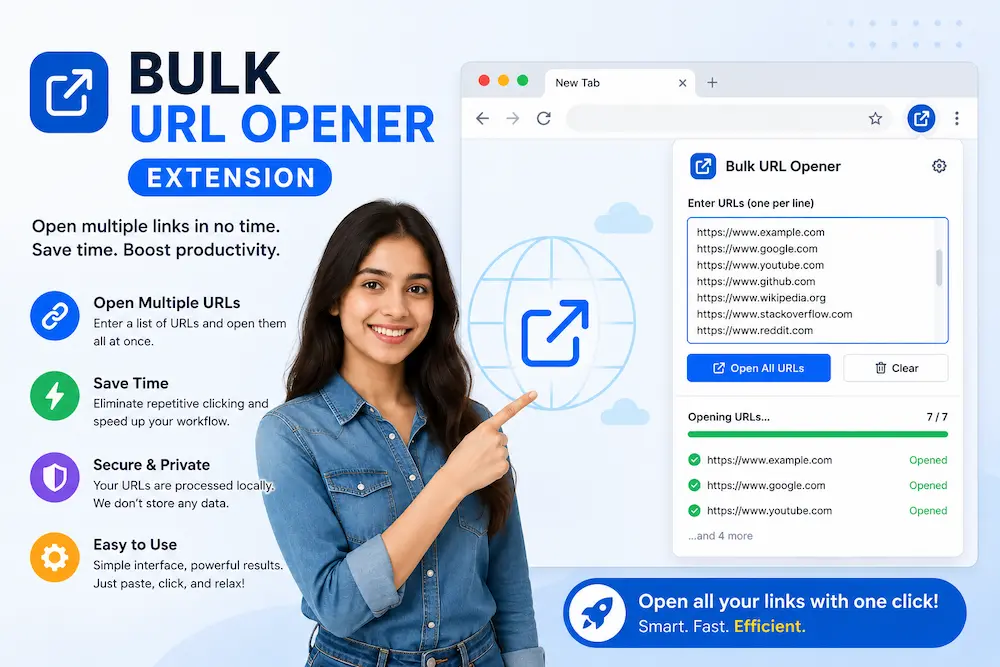
If you open URLs one by one every single day, you are quietly losing hours every week. Here is everything you need to know about the bulk URL opener extension — what it is, who needs it, and how to use it like a pro.
What Is a Bulk URL Opener Extension?
Defining the Tool
A bulk URL opener extension is a browser add-on that lets you open dozens — or even hundreds — of web links all at once, without clicking each one manually. You paste a list of URLs into the extension, hit a button, and every link opens in its own tab or window within seconds. Simple. Fast. Effective.
Think of it as a shortcut that turns a 30-minute task into a 30-second one. Instead of wasting time copying, pasting, and clicking one link at a time, you hand the repetitive work off to the extension. It handles the rest while you focus on what actually matters.
There are two versions of this kind of tool: browser extensions (installed directly in Chrome, Firefox, or Edge) and web-based tools (accessible without installation). Browser extensions tend to be faster and more feature-rich, which is why they are the preferred choice for professionals who work with URLs daily.
How It Works — The Core Mechanism
The process is straightforward. You click the extension icon in your browser toolbar, paste your full list of URLs into the input box — one per line — and click the “Open URLs” button. Every link opens in a new tab instantly. That is the core function, and it works exactly as described.
Most extensions also offer options to open URLs in separate windows, group them by domain, or set a time delay between each tab opening. The delay feature alone is a game-changer for anyone dealing with large URL batches, since it stops your browser from freezing when you open too many pages at once.
| 30s | 6.2M+ | 2–3 hrs |
| vs 30 min manually | users of URL opener tools | saved per week |
Why You Need a Bulk URL Opener Extension
The Productivity Cost of Manual Tab Opening
Here is an uncomfortable truth: if you manually open more than ten links a day, you are leaving serious time on the table. Studies show that professionals waste an average of 2 to 3 hours every single week doing nothing but clicking through individual links. Over a year, that adds up to over 100 hours of lost productivity — time that could go into actual work.
Opening tabs one by one is not just slow. It breaks your focus, interrupts your workflow, and turns a simple task into a mentally draining chore. The bulk URL opener extension fixes that entirely.
Key Benefits at a Glance
- Speed: Open 50 links in the time it would normally take to open 3.
- Focus: You do not have to switch between tasks repeatedly.
- Accuracy: No risk of accidentally skipping a URL in a long list.
- Flexibility: Configure how tabs open — in batches, with delays, in groups by domain.
It removes repetitive copying, pasting, and one-by-one opening of URLs entirely, turning the entire process into a single action. For anyone managing multiple websites, conducting audits, or running research, this is not a luxury. It is a necessity.
Top Features of a Bulk URL Opener Extension
Open Multiple URLs Simultaneously
The headline feature is exactly what it sounds like. You can instantly open large batches of URLs with a single click — whether that is 10 links or 200. The extension opens each one in its own tab without you lifting another finger. For high-volume tasks like link audits or competitive research, this feature alone pays for itself in saved time.
Tab Delay Controls
Opening 100 tabs all at once can freeze even a high-spec machine. That is where the delay slider comes in. You can set a specific wait time between each tab opening, which controls the pace and keeps your browser running smoothly. It is also useful when visiting websites that rate-limit or block rapid automated access — staggering the requests makes your activity look more natural.
Import, Export and URL List Management
You are not limited to manual copy-pasting. The best extensions let you load URLs directly from a .txt or .csv file, and export your current URL list just as easily. Some tools go even further — they can scan a block of raw text and automatically extract any valid links hiding inside it. This is incredibly useful when you are pulling URLs from a spreadsheet, a document, or a scraped data set.
URL Cleanup and Deduplication
If you are working with a large list, duplicates are inevitable. A good bulk URL opener extension automatically removes duplicate URLs before opening them, keeping your list clean and your tabs uncluttered. No more accidentally opening the same page three times during a backlink audit.
Save and Reload URL Lists
You do not have to rebuild your URL list from scratch every day. Most extensions let you save named lists and reload them from a dropdown menu whenever needed. If you check the same set of client pages every morning, or monitor a fixed set of competitor URLs weekly, this feature turns a setup task into a one-click habit.
Dark Mode and Custom Themes
For people who spend long hours in front of a screen, the dark mode option is more than just aesthetics. It reduces eye strain significantly, especially during late-night work sessions or in dimly lit environments. Several extensions offer multiple themes, so you can match the interface to your preferences.
Incognito Mode Support
Need to check URLs without leaving a trace in your browsing history? Some extensions support Incognito mode, allowing you to open and manage URLs privately. Just enable the extension in Incognito through your browser settings, and you are good to go.
Stop and Pause URL Opening
Sometimes you paste a list and immediately realize you need to stop before all the tabs open. A stop or pause button lets you halt the process mid-stream, preventing unnecessary tabs from piling up. This small feature saves you from frantically closing dozens of unwanted windows.
Who Should Use a Bulk URL Opener Extension?
SEO Professionals
If you work in SEO, this tool is practically essential. You can bulk-check backlinks, open all pages flagged during a site audit, or pull up every competitor URL from a keyword report — all at the same time. What would typically take 20 minutes of tab-opening now takes under a minute. During backlink outreach, you can open all potential link sources at once to quickly assess their relevance, authority, and contact accessibility.
Digital Marketers
Digital marketers juggle multiple campaigns across several platforms at once. Checking landing pages across geographic locations, verifying mobile-friendly test results, comparing ad performance pages — all of these tasks involve opening dozens of links in sequence. A multiple URL opener streamlines the entire workflow, letting marketers spend their mental energy on analysis rather than navigation.
Researchers and Academics
Whether you are compiling literature for a paper or pulling sources for an investigative piece, manually opening reference after reference is a productivity trap. Researchers can paste entire bibliographies or citation lists into the extension and open every source at once. It is a practical way to speed up literature reviews and source verification.
Web Developers and QA Testers
Developers regularly need to check the same page across staging, development, and production environments simultaneously. QA testers need to open multiple pages at once for regression testing. A bulk link opener cuts the setup time for these workflows significantly, letting you focus on actual testing rather than browser setup.
Content Creators and Bloggers
Before publishing a post, you need to verify every link. Bloggers and content writers can paste their entire list of outbound links — citations, resources, affiliate links — and open them all at once to quickly confirm they are working and pointing to the right destinations. Fast, easy, and thorough.
E-Commerce Sellers and Online Retailers
Online sellers often need to compare product listings across multiple marketplaces simultaneously. Open all your competitor product pages at once to analyze pricing, descriptions, images, and reviews in a fraction of the time it would take manually. This enables rapid price comparison and market trend identification with minimal effort.
How to Install and Use a Bulk URL Opener Extension (Step by Step)
Installing on Chrome
- Open the Chrome Web Store and search for “Bulk URL Opener Extension.”
- Choose an extension from a verified publisher with strong reviews.
- Click “Add to Chrome” and confirm the installation prompt.
- Pin the extension to your toolbar for quick access.
Installing on Firefox
Firefox users have solid options too. The Bulk URL Opener add-on is available directly on the Firefox Add-ons page. It collects no user data and requires only the “access browser tabs” permission — so you can install it with confidence. The interface is clean, the performance is reliable, and it works exactly as you would expect.
Installing on Microsoft Edge
Edge users can find bulk URL opener extensions in the Microsoft Edge Add-ons store. Since Edge is built on Chromium, many Chrome extensions also work natively on Edge — so your options are broader than you might think. Install, pin, and you are ready.
Using the Extension — A Quick Walkthrough
- Click the extension icon in your browser toolbar to open the popup.
- Paste your URL list into the text area — one link per line.
- Adjust your settings: batch size, tab delay, open in tabs or windows.
- Click “Open All URLs” and watch every link load in its own tab.
Pro Tips for First-Time Users
For the best performance, keep your batches to 15 to 20 URLs at a time. This keeps your browser stable and prevents slowdowns even on older machines. Use the tab delay slider when opening resource-heavy pages. And if you find yourself using the same URL list regularly, save it with a name so you can reload it in one click next time.
Pro tip: Use the keyboard shortcut Ctrl + Shift + U to open the extension popup instantly — no mouse needed.
Bulk URL Opener Extension vs. Manual Tab Opening: A Comparison
Still on the fence? Here is a direct side-by-side look at how the two approaches stack up across the metrics that matter most to professionals.
| Factor | Manual Tab Opening | Bulk URL Opener Extension |
|---|---|---|
| Speed | Slow — one click per link | Instant — all links at once |
| Effort required | High — repetitive clicking | Minimal — paste and click once |
| Error rate | High — easy to skip links | Low — all URLs processed from list |
| URL list management | None built-in | Save, load, export, import |
| Browser performance | Inconsistent | Controlled via delay settings |
| Scalability | Breaks down at 10+ links | Handles hundreds of URLs |
| Focus & workflow | Constantly interrupted | Uninterrupted — set and forget |
Best Bulk URL Opener Extensions Available in 2025–2026
There are several strong options available right now. Here are the top picks based on features, user ratings, and cross-browser compatibility.
Bulk URL Opener by OutrightCRM (Chrome)
Bulk URL Opener Extension by Melanto Ltd. (Chrome)
Bulk URL Opener by EuanRiggans (Firefox)
Bulk URL Opener & Tab Manager (Chrome)
vpChar Bulk URL Opener (Chrome / Opera / Edge)
Privacy and Security: Is the Bulk URL Opener Extension Safe?
What Permissions Does It Need?
The most reputable bulk URL opener extensions only request a single permission: access to browser tabs. This is required so the extension can open new tabs for each URL you paste in. That is it. No access to your browsing history, no reading of your personal data, no background tracking. The extension does its job and nothing more.
Most well-built extensions explicitly state that they collect zero user data and have no analytics running in the background. Before installing any extension, check its permissions list in the Chrome Web Store or Firefox Add-ons page. If it is asking for access to your passwords, your microphone, or any unrelated permissions — walk away.
Tips for Choosing a Safe Extension
Stick to extensions published in the official Chrome Web Store, Firefox Add-ons portal, or Microsoft Edge Add-ons store. Check the publisher name, the number of active users, the rating, and the most recent reviews. An extension with thousands of positive reviews and a clearly stated privacy policy is almost always a safe bet. Avoid anything from unknown publishers with very few downloads — and never install extensions from unofficial third-party sources.
Warning: Avoid installing browser extensions from unofficial sources or unknown developers. Always use verified store listings and read the permissions carefully before clicking “Add to Chrome.”
Tips and Tricks to Get the Most Out of Your Bulk URL Opener Extension
Organize Your URL Lists Before Opening
Take 60 seconds to clean your URL list before you paste it in. Remove broken links, strip duplicates, and group related URLs together. A tidy input list makes the whole process smoother and ensures you are not wasting tabs on dead pages. Many extensions include built-in deduplication, but starting clean is still the better habit.
Use Delay Settings Strategically
The tab delay feature is not just for protecting browser performance. Use it intentionally. When checking pages that rate-limit rapid access, a 2 to 3 second delay between tab openings keeps your requests looking organic. For lightweight pages like simple landing pages or blog posts, you can set the delay to zero and open everything at once.
Combine with a Tab Manager Extension
A bulk URL opener pairs perfectly with a tab manager. Once all your tabs are open, tools like OneTab let you group, save, or sort them for a more organized review session. This combination is especially useful during long research sessions where you are working through dozens of sources and need to keep things structured.
Leverage Import and Export for Recurring Tasks
If you check the same set of URLs every day or every week — client pages, competitor sites, campaign landing pages — export that list as a file and save it. Next time, import the file directly instead of rebuilding the list from scratch. This single habit alone can save you several minutes per session.
Keyboard Shortcut to Know
Most bulk URL opener extensions support a keyboard shortcut to open the popup without touching your mouse. The common default is Ctrl + Shift + U. Check your extension’s settings and customize it if needed — small shortcuts like this add up fast across a workday.
Common Mistakes to Avoid When Using a Bulk URL Opener
- Opening too many tabs without delay settings. Pasting 200 URLs and opening them all at once without a delay is a reliable way to freeze your browser. Always use batch controls or the delay slider for large lists.
- Using unverified extensions. Not every extension in search results is trustworthy. Stick to verified publishers with a strong review history and a clear privacy policy.
- Skipping deduplication. Opening the same URL multiple times wastes tabs and clutters your browser. Run a quick deduplication check before you open — most extensions do this automatically if you turn it on.
- Ignoring browser pop-up blocker settings. Some browsers block pop-ups by default, which can prevent tabs from opening. Make sure to allow pop-ups from the extension source or adjust your browser settings accordingly.
- Not saving important URL lists. If you spend time building a useful list, save it before closing the extension. Losing a carefully assembled list of 80 URLs because you forgot to export it is frustrating and entirely avoidable.
Frequently Asked Questions
What is a bulk URL opener extension?
Is the bulk URL opener extension free?
Does it work on Firefox and Edge, not just Chrome?
Can I save my URL lists for later use?
Will opening too many URLs crash my browser?
Is the extension safe to use — does it collect my data?
Can I use it in Incognito mode?
How many URLs can I open at once?
Wrapping Up
If you work with URLs regularly — whether you are an SEO professional, a digital marketer, a developer, a researcher, or a content creator — the bulk URL opener extension is one of the highest-ROI tools you can add to your browser today. It is free, lightweight, and solves a real problem that costs professionals hours every week.
You are not just saving time. You are removing the friction that kills focus. Instead of context-switching every few seconds to open another tab, you paste your list, click once, and your browser does the work. That mental clarity compounds over a full workday.
Pick an extension from the options above that fits your browser and workflow, install it in under two minutes, and try it on your next link-heavy task. Once you do, you will not go back to opening URLs one at a time. Share it with a colleague who you know is still doing things the slow way — they will thank you for it.